Xbase++
Xbase++
PDF Sign Unsigned Signature Field
See more PDF Signatures Examples
Demonstrates how to sign a PDF's unsigned signature field.Note: This example requires Chilkat v9.5.0.85 or greater.
Chilkat Xbase++ Downloads
LOCAL nSuccess
LOCAL oPdf
LOCAL oJson
LOCAL oCert
nSuccess := 0
// This example requires the Chilkat API to have been previously unlocked.
// See Global Unlock Sample for sample code.
oPdf := CreateObject("Chilkat.Pdf")
// Load a PDF containing an unsigned signature field.
nSuccess := oPdf:LoadFile("qa_data/pdf/unsigned_sig_field/due_diligence.pdf")
IF (nSuccess == 0)
? oPdf:LastErrorText
oPdf:destroy()
RETURN
ENDIF
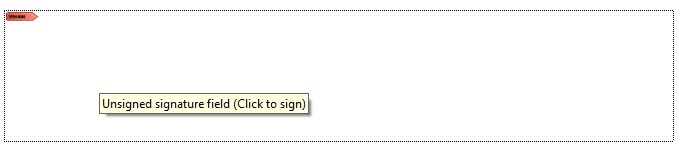
// A PDF with an unsigned signature field appears in Adobe Acrobat as shown below.
// (When the mouse pointer is hovered over the field, a tooltip will likely show a message
// such as "Unsigned signature field (Click to sign)".
// This example code will automatically find the unsigned signature field,
// and signs using your certificate. It automatically sizes the text to the space alotted
// for the signature.
//  // Options for signing are specified in JSON.
oJson := CreateObject("Chilkat.JsonObject")
// In most cases, the signingCertificateV2 and signingTime attributes are required.
oJson:UpdateInt("signingCertificateV2", 1)
oJson:UpdateInt("signingTime", 1)
// We don't specify the page or a specific location because Chilkat will automatically
// find the unsigned signature field and use its location and size and will scale the
// signatures visual appearance (text + graphics) to the correct size required to fit.
// We only need to indicate the desire to fill the unsigned signature field.
oJson:UpdateBool("appearance.fillUnsignedSignatureField", 1)
// Starting in Chilkat v9.5.0.90, if a PDF contains multiple unsigned signature fields,
// the field to be signed can be chosen by name:
// To list unsigned signature fields, see this example: List PDF Unsigned Signature Fields
oJson:UpdateString("unsignedSignatureField", "doctor_signature")
// Note: If the PDF document contains multiple unsigned signature fields, Chilkat will
// sign the 1st one found.
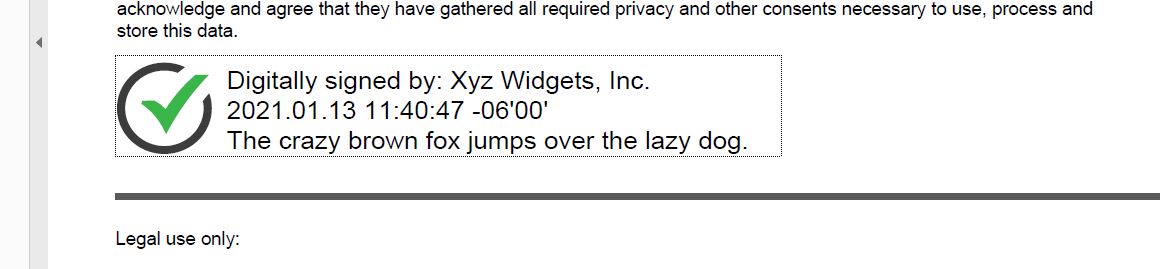
// In this example, the appearance of the digital signature will contain three lines:
// 1) The signing certificate's common name
// 2) The current date/time
// 3) Some arbitrary text.
// The keyword "cert_cn" is replaced with the Certificate's Subject Common Name.
// The keyword "current_dt" is replaced with the current date/time.
// Any number of appearance text lines can be added.
oJson:UpdateString("appearance.text[0]", "Digitally signed by: cert_cn")
oJson:UpdateString("appearance.text[1]", "current_dt")
oJson:UpdateString("appearance.text[2]", "The crazy brown fox jumps over the lazy dog.")
// This signature will include one of the built-in SVG graphics (green-check-grey-circle).
oJson:UpdateString("appearance.image", "green-check-grey-circle")
oJson:UpdateString("appearance.imagePlacement", "left")
// Load the signing certificate. (Use your own certificate.)
oCert := CreateObject("Chilkat.Cert")
nSuccess := oCert:LoadPfxFile("qa_data/pfx/myPdfSigningCert.pfx", "secret")
IF (nSuccess == 0)
? oCert:LastErrorText
oPdf:destroy()
oJson:destroy()
oCert:destroy()
RETURN
ENDIF
// Tell the pdf object to use the certificate for signing.
nSuccess := oPdf:SetSigningCert(oCert)
IF (nSuccess == 0)
? oPdf:LastErrorText
oPdf:destroy()
oJson:destroy()
oCert:destroy()
RETURN
ENDIF
nSuccess := oPdf:SignPdf(oJson, "qa_output/due_diligence_signed.pdf")
IF (nSuccess == 0)
? oPdf:LastErrorText
oPdf:destroy()
oJson:destroy()
oCert:destroy()
RETURN
ENDIF
? "The PDF has been successfully cryptographically signed."
// The appearance of the signature appears in Adobe Acrobat as shown below.
//
// Options for signing are specified in JSON.
oJson := CreateObject("Chilkat.JsonObject")
// In most cases, the signingCertificateV2 and signingTime attributes are required.
oJson:UpdateInt("signingCertificateV2", 1)
oJson:UpdateInt("signingTime", 1)
// We don't specify the page or a specific location because Chilkat will automatically
// find the unsigned signature field and use its location and size and will scale the
// signatures visual appearance (text + graphics) to the correct size required to fit.
// We only need to indicate the desire to fill the unsigned signature field.
oJson:UpdateBool("appearance.fillUnsignedSignatureField", 1)
// Starting in Chilkat v9.5.0.90, if a PDF contains multiple unsigned signature fields,
// the field to be signed can be chosen by name:
// To list unsigned signature fields, see this example: List PDF Unsigned Signature Fields
oJson:UpdateString("unsignedSignatureField", "doctor_signature")
// Note: If the PDF document contains multiple unsigned signature fields, Chilkat will
// sign the 1st one found.
// In this example, the appearance of the digital signature will contain three lines:
// 1) The signing certificate's common name
// 2) The current date/time
// 3) Some arbitrary text.
// The keyword "cert_cn" is replaced with the Certificate's Subject Common Name.
// The keyword "current_dt" is replaced with the current date/time.
// Any number of appearance text lines can be added.
oJson:UpdateString("appearance.text[0]", "Digitally signed by: cert_cn")
oJson:UpdateString("appearance.text[1]", "current_dt")
oJson:UpdateString("appearance.text[2]", "The crazy brown fox jumps over the lazy dog.")
// This signature will include one of the built-in SVG graphics (green-check-grey-circle).
oJson:UpdateString("appearance.image", "green-check-grey-circle")
oJson:UpdateString("appearance.imagePlacement", "left")
// Load the signing certificate. (Use your own certificate.)
oCert := CreateObject("Chilkat.Cert")
nSuccess := oCert:LoadPfxFile("qa_data/pfx/myPdfSigningCert.pfx", "secret")
IF (nSuccess == 0)
? oCert:LastErrorText
oPdf:destroy()
oJson:destroy()
oCert:destroy()
RETURN
ENDIF
// Tell the pdf object to use the certificate for signing.
nSuccess := oPdf:SetSigningCert(oCert)
IF (nSuccess == 0)
? oPdf:LastErrorText
oPdf:destroy()
oJson:destroy()
oCert:destroy()
RETURN
ENDIF
nSuccess := oPdf:SignPdf(oJson, "qa_output/due_diligence_signed.pdf")
IF (nSuccess == 0)
? oPdf:LastErrorText
oPdf:destroy()
oJson:destroy()
oCert:destroy()
RETURN
ENDIF
? "The PDF has been successfully cryptographically signed."
// The appearance of the signature appears in Adobe Acrobat as shown below.
//  oPdf:destroy()
oJson:destroy()
oCert:destroy()
oPdf:destroy()
oJson:destroy()
oCert:destroy()