Visual Basic 6.0
Visual Basic 6.0
Google Sheets - Append Values to an Existing Spreadsheet
See more Google Sheets Examples
Appends values to an existing Google spreadsheet.Chilkat Visual Basic 6.0 Downloads
Dim success As Long
success = 0
' This example requires the Chilkat API to have been previously unlocked.
' See Global Unlock Sample for sample code.
' This example uses a previously obtained access token having permission for the
' Google Sheets scope.
' In this example, Get Google Sheets OAuth2 Access Token, the access
' token was saved to a JSON file. This example fetches the access token from the file..
Dim jsonToken As New ChilkatJsonObject
success = jsonToken.LoadFile("qa_data/tokens/googleSheets.json")
If (jsonToken.HasMember("access_token") = 0) Then
Debug.Print "No access token found."
Exit Sub
End If
Dim http As New ChilkatHttp
http.AuthToken = jsonToken.StringOf("access_token")
' To append values to an existing spreadsheet, our HTTP request body will
' contain JSON in the format of a "ValueRange". For example, the spreadsheet we'll be
' adding to in this example looks like this:
' 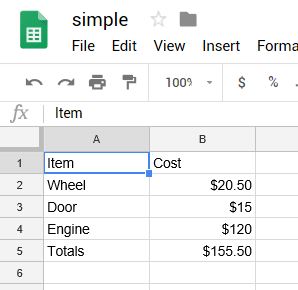 ' The JSON ValueRange for the cells in the above spreadsheet is:
' {
' "range": "Sheet1!A1:B5",
' "majorDimension": "ROWS",
' "values": [
' [
' "Item",
' "Cost"
' ],
' [
' "Wheel",
' "$20.50"
' ],
' [
' "Door",
' "$15"
' ],
' [
' "Engine",
' "$100"
' ],
' [
' "Totals",
' "$135.50"
' ]
' ]
' }
' This example will append 6 cells (3 rows / 2 columns).
' We'll be appending the following:
'
' "Paint", "$100"
' "Brakes", "$100"
' "New Total", "$335.50"
'
' The range of cells we'll be appending is A1:B5
' Therefore, the ValueRange JSON we'll be sending in our POST body is:
' {
' "range": "Sheet1!A1:B5",
' "majorDimension": "ROWS",
' "values": [
' [
' "Paint",
' "$100"
' ],
' [
' "Brakes",
' "$100"
' ],
' [
' "New Total",
' "$335.50"
' ]
' ]
' }
Dim json As New ChilkatJsonObject
success = json.UpdateString("range","Sheet1!A1:B5")
success = json.UpdateString("majorDimension","ROWS")
json.I = 0
json.J = 1
success = json.UpdateString("values[i][j]","Paint")
json.J = 1
success = json.UpdateString("values[i][j]","$100")
json.I = 1
json.J = 0
success = json.UpdateString("values[i][j]","Brakes")
json.J = 1
success = json.UpdateString("values[i][j]","$100")
json.I = 2
json.J = 0
success = json.UpdateString("values[i][j]","Totals")
json.J = 1
success = json.UpdateString("values[i][j]","$335.50")
json.EmitCompact = 0
Debug.Print json.Emit()
' Send the POST to:
' https://sheets.googleapis.com/v4/spreadsheets/{spreadsheetId}/values/{range}:append?valueInputOption=USER_ENTERED
success = http.SetUrlVar("spreadsheetId","1_SO2L-Y6nCayNpNppJLF0r9yHB2UnaCleGCKeE4O0SA")
success = http.SetUrlVar("range","Sheet1!A1:B5")
Dim resp As New ChilkatHttpResponse
success = http.HttpJson("POST","https://sheets.googleapis.com/v4/spreadsheets/{$spreadsheetId}/values/{$range}:append?valueInputOption=USER_ENTERED",json,"application/json",resp)
If (success = 0) Then
Debug.Print http.LastErrorText
Exit Sub
End If
Debug.Print "response status code = " & resp.StatusCode
Debug.Print "response JSON = " & resp.BodyStr
' Sample output:
'
' response status code = 200
' response JSON = {
' "spreadsheetId": "1_SO2L-Y6nCayNpNppJLF0r9yHB2UnaCleGCKeE4O0SA",
' "tableRange": "Sheet1!A1:B5",
' "updates": {
' "spreadsheetId": "1_SO2L-Y6nCayNpNppJLF0r9yHB2UnaCleGCKeE4O0SA",
' "updatedRange": "Sheet1!A6:B8",
' "updatedRows": 3,
' "updatedColumns": 2,
' "updatedCells": 6
' }
' }
'
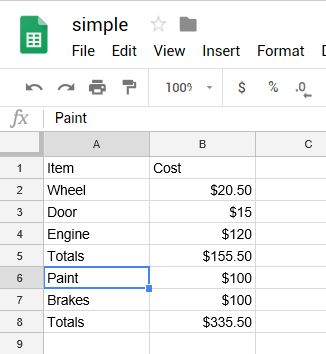
' Our Google Spreadsheet now looks like this:
'
' The JSON ValueRange for the cells in the above spreadsheet is:
' {
' "range": "Sheet1!A1:B5",
' "majorDimension": "ROWS",
' "values": [
' [
' "Item",
' "Cost"
' ],
' [
' "Wheel",
' "$20.50"
' ],
' [
' "Door",
' "$15"
' ],
' [
' "Engine",
' "$100"
' ],
' [
' "Totals",
' "$135.50"
' ]
' ]
' }
' This example will append 6 cells (3 rows / 2 columns).
' We'll be appending the following:
'
' "Paint", "$100"
' "Brakes", "$100"
' "New Total", "$335.50"
'
' The range of cells we'll be appending is A1:B5
' Therefore, the ValueRange JSON we'll be sending in our POST body is:
' {
' "range": "Sheet1!A1:B5",
' "majorDimension": "ROWS",
' "values": [
' [
' "Paint",
' "$100"
' ],
' [
' "Brakes",
' "$100"
' ],
' [
' "New Total",
' "$335.50"
' ]
' ]
' }
Dim json As New ChilkatJsonObject
success = json.UpdateString("range","Sheet1!A1:B5")
success = json.UpdateString("majorDimension","ROWS")
json.I = 0
json.J = 1
success = json.UpdateString("values[i][j]","Paint")
json.J = 1
success = json.UpdateString("values[i][j]","$100")
json.I = 1
json.J = 0
success = json.UpdateString("values[i][j]","Brakes")
json.J = 1
success = json.UpdateString("values[i][j]","$100")
json.I = 2
json.J = 0
success = json.UpdateString("values[i][j]","Totals")
json.J = 1
success = json.UpdateString("values[i][j]","$335.50")
json.EmitCompact = 0
Debug.Print json.Emit()
' Send the POST to:
' https://sheets.googleapis.com/v4/spreadsheets/{spreadsheetId}/values/{range}:append?valueInputOption=USER_ENTERED
success = http.SetUrlVar("spreadsheetId","1_SO2L-Y6nCayNpNppJLF0r9yHB2UnaCleGCKeE4O0SA")
success = http.SetUrlVar("range","Sheet1!A1:B5")
Dim resp As New ChilkatHttpResponse
success = http.HttpJson("POST","https://sheets.googleapis.com/v4/spreadsheets/{$spreadsheetId}/values/{$range}:append?valueInputOption=USER_ENTERED",json,"application/json",resp)
If (success = 0) Then
Debug.Print http.LastErrorText
Exit Sub
End If
Debug.Print "response status code = " & resp.StatusCode
Debug.Print "response JSON = " & resp.BodyStr
' Sample output:
'
' response status code = 200
' response JSON = {
' "spreadsheetId": "1_SO2L-Y6nCayNpNppJLF0r9yHB2UnaCleGCKeE4O0SA",
' "tableRange": "Sheet1!A1:B5",
' "updates": {
' "spreadsheetId": "1_SO2L-Y6nCayNpNppJLF0r9yHB2UnaCleGCKeE4O0SA",
' "updatedRange": "Sheet1!A6:B8",
' "updatedRows": 3,
' "updatedColumns": 2,
' "updatedCells": 6
' }
' }
'
' Our Google Spreadsheet now looks like this:
'