Tcl
Tcl
Get OAuth2 Access Token for Azure Registered App
Demonstrates how to get OAuth2 access token for an Azure Registered App from a desktop application or script. This example demonstrates the OAuth2 authorization flow.This example requires Chilkat v10.1.2 or greater.
Chilkat Tcl Downloads
load ./chilkat.dll
set success 0
# To further clarify, see OAuth 2.0 Authorization Flow
set oauth2 [new_CkOAuth2]
# This should be the port in the localhost callback URL for your app.
# The callback URL would look like "http://localhost:3017/" if the port number is 3017.
CkOAuth2_put_ListenPort $oauth2 3017
# ----------------------------------------------------------------------------------------------------------
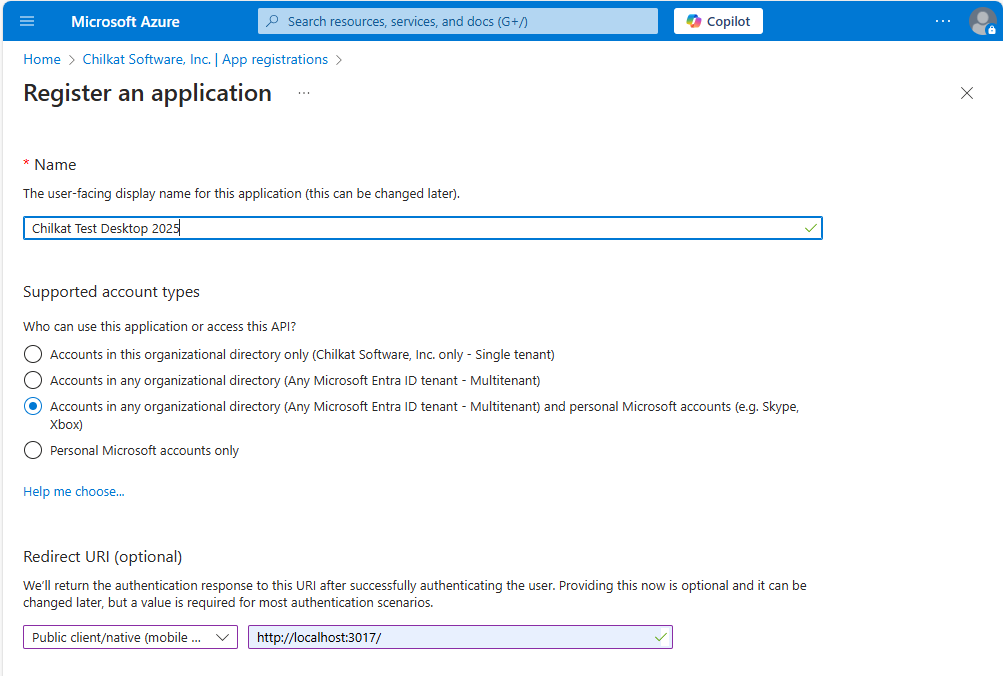
# The screenshot at the bottom of this page shows how we created the Azure App Registration for this example.
# ----------------------------------------------------------------------------------------------------------
# Note: The endpoint depends on the Azure App Registration.
# See How to Choose the Correct Endpoints for your Azure App Registration
CkOAuth2_put_AuthorizationEndpoint $oauth2 "https://login.microsoftonline.com/common/oauth2/v2.0/authorize"
CkOAuth2_put_TokenEndpoint $oauth2 "https://login.microsoftonline.com/common/oauth2/v2.0/token"
# Replace these with actual values.
CkOAuth2_put_ClientId $oauth2 "CLIENT_ID"
# This is for Require Proof Key for Code Exchange (PKCE)
# See OAuth2 PKCE Explained
CkOAuth2_put_CodeChallenge $oauth2 1
CkOAuth2_put_CodeChallengeMethod $oauth2 "S256"
# Provide a SPACE separated list of scopes.
# See https://developer.microsoft.com/en-us/graph/docs/authorization/permission_scopes
# Important: To get a refresh token in the final response, ask for "offline_access" scope
CkOAuth2_put_Scope $oauth2 "openid profile offline_access user.readwrite mail.readwrite mail.send files.readwrite"
# Begin the OAuth2 three-legged flow. This returns a URL that should be loaded in a browser.
set url [CkOAuth2_startAuth $oauth2]
if {[CkOAuth2_get_LastMethodSuccess $oauth2] != 1} then {
puts [CkOAuth2_lastErrorText $oauth2]
delete_CkOAuth2 $oauth2
exit
}
# Launch the default browser on the system and navigate to the url.
# The LaunchBrowser method was added in Chilkat v10.1.2.
set success [CkOAuth2_LaunchBrowser $oauth2 $url]
if {$success == 0} then {
puts [CkOAuth2_lastErrorText $oauth2]
delete_CkOAuth2 $oauth2
exit
}
# Wait for the user to approve or deny authorization in the browser.
set numMsWaited 0
while {expr [$numMsWaited < 90000] && [[CkOAuth2_get_AuthFlowState $oauth2] < 3]} {
CkOAuth2_SleepMs $oauth2 100
set numMsWaited [expr $numMsWaited + 100]
}
# If the browser does not respond within the specified time, AuthFlowState will be:
#
# 1: Waiting for Redirect � The OAuth2 background thread is waiting for the browser's redirect request.
# 2: Waiting for Final Response � The thread is awaiting the final access token response.
# In either case, cancel the background task initiated by StartAuth.
if {[CkOAuth2_get_AuthFlowState $oauth2] < 3} then {
CkOAuth2_Cancel $oauth2
puts "No response from the browser!"
delete_CkOAuth2 $oauth2
exit
}
# Check AuthFlowState to determine if authorization was granted, denied, or failed:
#
# 3: Success � OAuth2 flow completed, the background thread exited, and the successful response is in AccessTokenResponse.
# 4: Access Denied � OAuth2 flow completed, the background thread exited, and the error response is in AccessTokenResponse.
# 5: Failure � OAuth2 flow failed before completion, the background thread exited, and error details are in FailureInfo.
if {[CkOAuth2_get_AuthFlowState $oauth2] == 5} then {
puts "OAuth2 failed to complete."
puts [CkOAuth2_failureInfo $oauth2]
delete_CkOAuth2 $oauth2
exit
}
if {[CkOAuth2_get_AuthFlowState $oauth2] == 4} then {
puts "OAuth2 authorization was denied."
puts [CkOAuth2_accessTokenResponse $oauth2]
delete_CkOAuth2 $oauth2
exit
}
if {[CkOAuth2_get_AuthFlowState $oauth2] != 3} then {
puts "Unexpected AuthFlowState:[CkOAuth2_get_AuthFlowState $oauth2]"
delete_CkOAuth2 $oauth2
exit
}
puts "OAuth2 authorization granted!"
puts "Access Token = [CkOAuth2_accessToken $oauth2]"
# When the token is near expiration, your app can refresh as shown here:
# Refresh Expiring OAuth2 Access Token for Azure Registered App
# Get the full JSON response:
set json [new_CkJsonObject]
CkJsonObject_Load $json [CkOAuth2_accessTokenResponse $oauth2]
CkJsonObject_put_EmitCompact $json 0
# The JSON response looks like this:
# {
# "token_type": "Bearer",
# "scope": "User.Read Mail.ReadWrite Mail.Send",
# "expires_in": 3600,
# "ext_expires_in": 0,
# "access_token": "EwBAA8l6B...",
# "refresh_token": "MCRMdbe...",
# "id_token": "eyJ0eXA..."
# }
# If an "expires_on" member does not exist, then add the JSON member by
# getting the current system date/time and adding the "expires_in" seconds.
# This way we'll know when the token expires.
if {[CkJsonObject_HasMember $json "expires_on"] != 1} then {
set dtExpire [new_CkDateTime]
CkDateTime_SetFromCurrentSystemTime $dtExpire
CkDateTime_AddSeconds $dtExpire [CkJsonObject_IntOf $json "expires_in"]
CkJsonObject_AppendString $json "expires_on" [CkDateTime_getAsUnixTimeStr $dtExpire 0]
}
puts [CkJsonObject_emit $json]
# Save the JSON to a file for future requests.
set fac [new_CkFileAccess]
CkFileAccess_WriteEntireTextFile $fac "qa_data/tokens/_myAzureApp.json" [CkJsonObject_emit $json] "utf-8" 0
# This is a screenshot of how we created the Azure App for this example:
#  delete_CkOAuth2 $oauth2
delete_CkJsonObject $json
delete_CkDateTime $dtExpire
delete_CkFileAccess $fac
delete_CkOAuth2 $oauth2
delete_CkJsonObject $json
delete_CkDateTime $dtExpire
delete_CkFileAccess $fac