SQL Server Requires Chilkat v11.7.0+
SQL Server
QR Code Quiet Zone, Padding and Rotation
See more QR Code Examples
Demonstrates the space around a QR code and its rotation. The quiet zone is the blank margin a reader needs around the symbol. It is measured in modules, the QR standard requires 4, and QrCode will make it larger but not smaller. Padding is extra space outside the quiet zone, measured in the render units (pixels by default). Rotation turns the whole image by 90, 180 or 270 degrees. A QR code reads the same at any rotation.Chilkat SQL Server Downloads
--
CREATE PROCEDURE ChilkatSample
AS
BEGIN
DECLARE @hr int
DECLARE @iTmp0 int
DECLARE @iTmp1 int
DECLARE @iTmp2 int
DECLARE @iTmp3 int
DECLARE @sTmp0 nvarchar(4000)
DECLARE @success int
SELECT @success = 0
-- This example requires the Chilkat API to have been previously unlocked.
-- See Global Unlock Sample for sample code.
DECLARE @json int
EXEC @hr = sp_OACreate 'Chilkat.JsonObject', @json OUT
IF @hr <> 0
BEGIN
PRINT 'Failed to create ActiveX component'
RETURN
END
EXEC sp_OAMethod @json, 'UpdateString', @success OUT, 'payload.text', 'https://www.chilkatsoft.com/'
EXEC sp_OAMethod @json, 'UpdateInt', @success OUT, 'render.moduleSize', 6
-- A quiet zone of 6 modules on every side instead of the standard 4.
EXEC sp_OAMethod @json, 'UpdateInt', @success OUT, 'render.quietZone.left', 6
EXEC sp_OAMethod @json, 'UpdateInt', @success OUT, 'render.quietZone.top', 6
EXEC sp_OAMethod @json, 'UpdateInt', @success OUT, 'render.quietZone.right', 6
EXEC sp_OAMethod @json, 'UpdateInt', @success OUT, 'render.quietZone.bottom', 6
-- 10 more pixels of background around that.
EXEC sp_OAMethod @json, 'UpdateInt', @success OUT, 'render.padding', 10
-- Turn the image a quarter turn clockwise.
EXEC sp_OAMethod @json, 'UpdateInt', @success OUT, 'render.rotation', 90
EXEC sp_OAMethod @json, 'UpdateString', @success OUT, 'output.path', 'qa_output/qr_margins.png'
EXEC sp_OAMethod @json, 'UpdateBool', @success OUT, 'output.overwrite', 1
EXEC sp_OAMethod @json, 'UpdateString', @success OUT, 'output.return', 'none'
DECLARE @fmt int
EXEC @hr = sp_OACreate 'Chilkat.Formats', @fmt OUT
DECLARE @jsonOut int
EXEC @hr = sp_OACreate 'Chilkat.JsonObject', @jsonOut OUT
EXEC sp_OAMethod @fmt, 'QrCode', @success OUT, 'generate', @json, @jsonOut
IF @success = 0
BEGIN
EXEC sp_OAGetProperty @fmt, 'LastErrorText', @sTmp0 OUT
PRINT @sTmp0
EXEC @hr = sp_OADestroy @json
EXEC @hr = sp_OADestroy @fmt
EXEC @hr = sp_OADestroy @jsonOut
RETURN
END
EXEC sp_OAMethod @jsonOut, 'IntOf', @iTmp0 OUT, 'measurements[0].pitch'
PRINT 'module: ' + @iTmp0 + ' pixels'
EXEC sp_OAMethod @jsonOut, 'IntOf', @iTmp0 OUT, 'measurements[0].symbolWidth'
EXEC sp_OAMethod @jsonOut, 'IntOf', @iTmp1 OUT, 'measurements[0].symbolHeight'
EXEC sp_OAMethod @jsonOut, 'IntOf', @iTmp2 OUT, 'measurements[0].symbolX'
EXEC sp_OAMethod @jsonOut, 'IntOf', @iTmp3 OUT, 'measurements[0].symbolY'
PRINT 'symbol: ' + @iTmp0 + ' x ' + @iTmp1 + ' pixels at (' + @iTmp2 + ',' + @iTmp3 + ')'
EXEC sp_OAMethod @jsonOut, 'IntOf', @iTmp0 OUT, 'measurements[0].quietZonePx.left'
PRINT 'quiet zone: ' + @iTmp0 + ' pixels'
EXEC sp_OAMethod @jsonOut, 'IntOf', @iTmp0 OUT, 'measurements[0].paddingPx'
PRINT 'padding: ' + @iTmp0 + ' pixels'
EXEC sp_OAMethod @jsonOut, 'IntOf', @iTmp0 OUT, 'measurements[0].rotation'
PRINT 'rotation: ' + @iTmp0
EXEC sp_OAMethod @jsonOut, 'IntOf', @iTmp0 OUT, 'measurements[0].canvasWidth'
EXEC sp_OAMethod @jsonOut, 'IntOf', @iTmp1 OUT, 'measurements[0].canvasHeight'
PRINT 'image: ' + @iTmp0 + ' x ' + @iTmp1 + ' pixels'
-- The image, enlarged, with the quiet zone and the padding tinted here to show where they are.
-- In the image itself both are plain white. A QR code has no finder pattern (the large squares)
-- in its bottom right corner. After the quarter turn that corner is at the bottom left:
-- 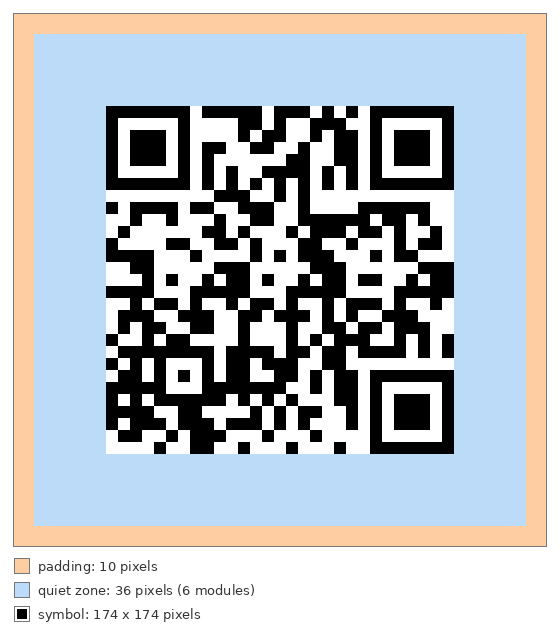 -- Sample output:
-- module: 6 pixels
-- symbol: 174 x 174 pixels at (46,46)
-- quiet zone: 36 pixels
-- padding: 10 pixels
-- rotation: 90
-- image: 266 x 266 pixels
EXEC @hr = sp_OADestroy @json
EXEC @hr = sp_OADestroy @fmt
EXEC @hr = sp_OADestroy @jsonOut
END
GO