SQL Server Requires Chilkat v11.7.0+
SQL Server
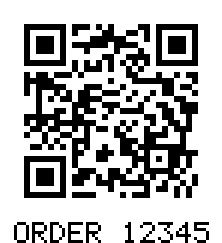
QR Code with a Text Caption
See more QR Code Examples
Demonstrates printing a line of text under a QR code, such as the order number or the address the code holds, so that a person can read it too. render.text turns the caption on and gives its value, which is printable ASCII and is drawn in a built-in font that needs no font files. The caption can go above or below the symbol, be aligned left, center or right, and be scaled.Chilkat SQL Server Downloads
--
CREATE PROCEDURE ChilkatSample
AS
BEGIN
DECLARE @hr int
DECLARE @iTmp0 int
DECLARE @iTmp1 int
DECLARE @sTmp0 nvarchar(4000)
DECLARE @success int
SELECT @success = 0
-- This example requires the Chilkat API to have been previously unlocked.
-- See Global Unlock Sample for sample code.
DECLARE @json int
EXEC @hr = sp_OACreate 'Chilkat.JsonObject', @json OUT
IF @hr <> 0
BEGIN
PRINT 'Failed to create ActiveX component'
RETURN
END
EXEC sp_OAMethod @json, 'UpdateString', @success OUT, 'payload.text', 'https://www.chilkatsoft.com/order/12345'
EXEC sp_OAMethod @json, 'UpdateInt', @success OUT, 'render.moduleSize', 6
-- The caption. It need not be the same as the text in the QR code.
EXEC sp_OAMethod @json, 'UpdateBool', @success OUT, 'render.text.enabled', 1
EXEC sp_OAMethod @json, 'UpdateString', @success OUT, 'render.text.value', 'ORDER 12345'
-- position is "below" (the default) or "above". alignment is "center" (the default), "left" or "right".
EXEC sp_OAMethod @json, 'UpdateString', @success OUT, 'render.text.position', 'below'
-- Each dot of the caption's font is drawn this many pixels wide.
EXEC sp_OAMethod @json, 'UpdateInt', @success OUT, 'render.text.scale', 3
EXEC sp_OAMethod @json, 'UpdateString', @success OUT, 'output.path', 'qa_output/qr_caption.png'
EXEC sp_OAMethod @json, 'UpdateBool', @success OUT, 'output.overwrite', 1
EXEC sp_OAMethod @json, 'UpdateString', @success OUT, 'output.return', 'none'
DECLARE @fmt int
EXEC @hr = sp_OACreate 'Chilkat.Formats', @fmt OUT
DECLARE @jsonOut int
EXEC @hr = sp_OACreate 'Chilkat.JsonObject', @jsonOut OUT
EXEC sp_OAMethod @fmt, 'QrCode', @success OUT, 'generate', @json, @jsonOut
IF @success = 0
BEGIN
EXEC sp_OAGetProperty @fmt, 'LastErrorText', @sTmp0 OUT
PRINT @sTmp0
EXEC @hr = sp_OADestroy @json
EXEC @hr = sp_OADestroy @fmt
EXEC @hr = sp_OADestroy @jsonOut
RETURN
END
EXEC sp_OAMethod @jsonOut, 'StringOf', @sTmp0 OUT, 'measurements[0].text'
PRINT 'caption: ' + @sTmp0
EXEC sp_OAMethod @jsonOut, 'IntOf', @iTmp0 OUT, 'measurements[0].textScale'
PRINT 'caption scale: ' + @iTmp0
EXEC sp_OAMethod @jsonOut, 'IntOf', @iTmp0 OUT, 'measurements[0].textBandPx'
PRINT 'height added for the caption: ' + @iTmp0 + ' pixels'
EXEC sp_OAMethod @jsonOut, 'IntOf', @iTmp0 OUT, 'measurements[0].canvasWidth'
EXEC sp_OAMethod @jsonOut, 'IntOf', @iTmp1 OUT, 'measurements[0].canvasHeight'
PRINT 'image: ' + @iTmp0 + ' x ' + @iTmp1 + ' pixels'
-- The image written to qa_output/qr_caption.png:
--  -- Sample output:
-- caption: ORDER 12345
-- caption scale: 3
-- height added for the caption: 21 pixels
-- image: 222 x 243 pixels
EXEC @hr = sp_OADestroy @json
EXEC @hr = sp_OADestroy @fmt
EXEC @hr = sp_OADestroy @jsonOut
END
GO