PowerShell
PowerShell
Yahoo Mail OAuth2 Access Token for Desktop App
See more Yahoo Mail Examples
Demonstrates how to get a Yahoo Email OAuth2 access token from a desktop application or script.Chilkat PowerShell Downloads
Add-Type -Path "C:\chilkat\ChilkatDotNet47-x64\ChilkatDotNet47.dll"
$success = $false
# First, you must define your app in Yahoo Developer (https://developer.yahoo.com/apps/) like this:
# 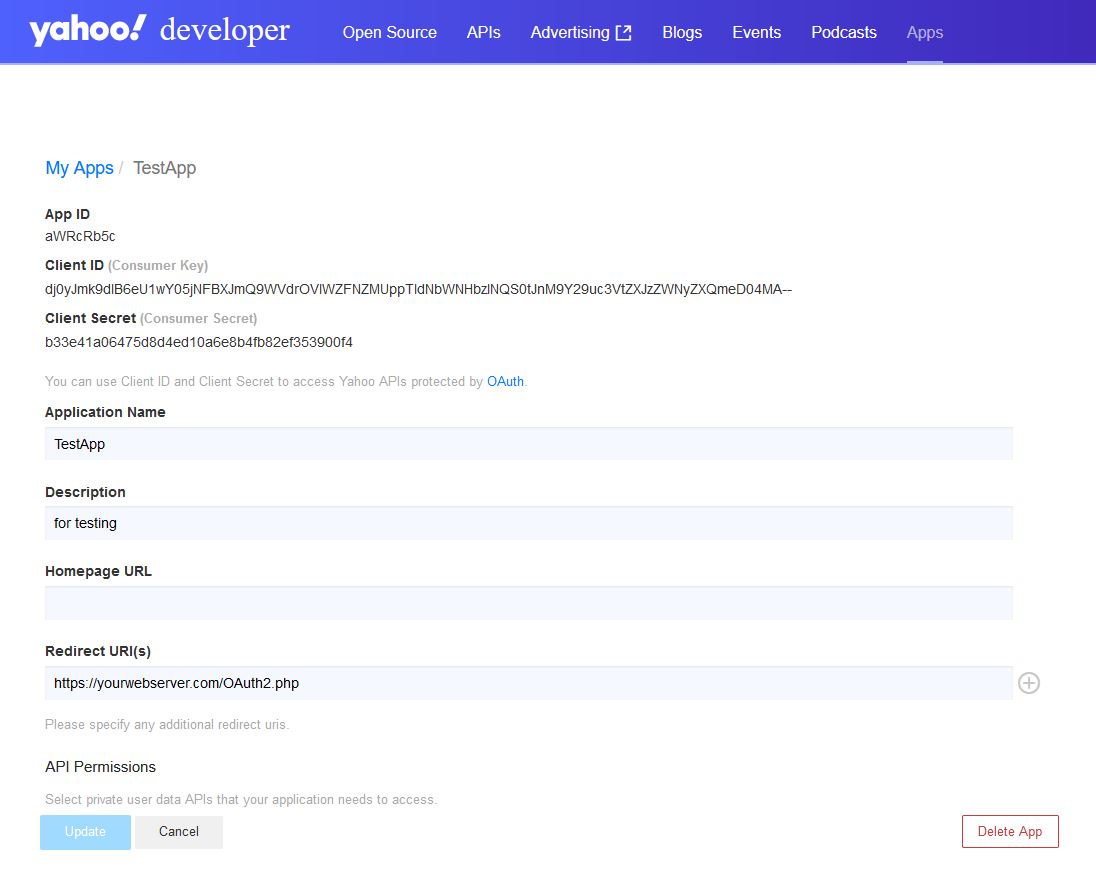 # This example requires the Chilkat API to have been previously unlocked.
# See Global Unlock Sample for sample code.
$oauth2 = New-Object Chilkat.OAuth2
# Your applicaton must use your own public web server as an intermediate
# to receive and forward the redirect to localhost.
# See Using Your Web Server as an Intermediary for OAuth2 Redirect to localhost
$oauth2.AppCallbackUrl = "https://yourwebserver.com/oauth_redirect"
$oauth2.ListenPort = 3017
$oauth2.AuthorizationEndpoint = "https://api.login.yahoo.com/oauth2/request_auth"
$oauth2.TokenEndpoint = "https://api.login.yahoo.com/oauth2/get_token"
# Replace these with actual values.
$oauth2.ClientId = "CLIENT_ID"
$oauth2.ClientSecret = "CLIENT_SECRET"
# Do not send the "scope" query param for Yahoo OAuth2.
$oauth2.UncommonOptions = "NO_OAUTH2_SCOPE"
# Begin the OAuth2 Authorization code flow. This returns a URL that should be loaded in a browser.
$url = $oauth2.StartAuth()
if ($oauth2.LastMethodSuccess -eq $false) {
$($oauth2.LastErrorText)
exit
}
$("url = " + $url)
# Launch the default browser on the system and navigate to the url.
# The LaunchBrowser method was added in Chilkat v10.1.2.
$success = $oauth2.LaunchBrowser($url)
if ($success -eq $false) {
$($oauth2.LastErrorText)
exit
}
# Wait for the user to approve or deny authorization in the browser.
$numMsWaited = 0
while (($numMsWaited -lt 90000) -and ($oauth2.AuthFlowState -lt 3)) {
$oauth2.SleepMs(100)
$numMsWaited = $numMsWaited + 100
}
# If the browser does not respond within the specified time, AuthFlowState will be:
#
# 1: Waiting for Redirect - The OAuth2 background thread is waiting for the browser's redirect request.
# 2: Waiting for Final Response - The thread is awaiting the final access token response.
# In either case, cancel the background task initiated by StartAuth.
if ($oauth2.AuthFlowState -lt 3) {
$oauth2.Cancel()
$("No response from the browser!")
exit
}
# Check AuthFlowState to determine if authorization was granted, denied, or failed:
#
# 3: Success - OAuth2 flow completed, the background thread exited, and the successful response is in AccessTokenResponse.
# 4: Access Denied - OAuth2 flow completed, the background thread exited, and the error response is in AccessTokenResponse.
# 5: Failure - OAuth2 flow failed before completion, the background thread exited, and error details are in FailureInfo.
if ($oauth2.AuthFlowState -eq 5) {
$("OAuth2 failed to complete.")
$($oauth2.FailureInfo)
exit
}
if ($oauth2.AuthFlowState -eq 4) {
$("OAuth2 authorization was denied.")
$($oauth2.AccessTokenResponse)
exit
}
if ($oauth2.AuthFlowState -ne 3) {
$("Unexpected AuthFlowState:" + $oauth2.AuthFlowState)
exit
}
# Save the full JSON access token response to a file.
$sbJson = New-Object Chilkat.StringBuilder
$sbJson.Append($oauth2.AccessTokenResponse)
$sbJson.WriteFile("qa_data/tokens/yahooMail.json","utf-8",$false)
# The saved JSON response looks like this:
# {
# "access_token": "kCVQdnOdul...LHucA--",
# "refresh_token": "AIenVXETSo0jklFBVkPS8vVm8E.Ej9ToRG.xDbDYmZ65WIs5t6CZhDrD",
# "expires_in": 3600,
# "token_type": "bearer",
# "xoauth_yahoo_guid": "HGDQCVF5JB4YDOWHITQJFBHCWA"
# }
$("OAuth2 authorization granted!")
$("Access Token: " + $oauth2.AccessToken)
# This example requires the Chilkat API to have been previously unlocked.
# See Global Unlock Sample for sample code.
$oauth2 = New-Object Chilkat.OAuth2
# Your applicaton must use your own public web server as an intermediate
# to receive and forward the redirect to localhost.
# See Using Your Web Server as an Intermediary for OAuth2 Redirect to localhost
$oauth2.AppCallbackUrl = "https://yourwebserver.com/oauth_redirect"
$oauth2.ListenPort = 3017
$oauth2.AuthorizationEndpoint = "https://api.login.yahoo.com/oauth2/request_auth"
$oauth2.TokenEndpoint = "https://api.login.yahoo.com/oauth2/get_token"
# Replace these with actual values.
$oauth2.ClientId = "CLIENT_ID"
$oauth2.ClientSecret = "CLIENT_SECRET"
# Do not send the "scope" query param for Yahoo OAuth2.
$oauth2.UncommonOptions = "NO_OAUTH2_SCOPE"
# Begin the OAuth2 Authorization code flow. This returns a URL that should be loaded in a browser.
$url = $oauth2.StartAuth()
if ($oauth2.LastMethodSuccess -eq $false) {
$($oauth2.LastErrorText)
exit
}
$("url = " + $url)
# Launch the default browser on the system and navigate to the url.
# The LaunchBrowser method was added in Chilkat v10.1.2.
$success = $oauth2.LaunchBrowser($url)
if ($success -eq $false) {
$($oauth2.LastErrorText)
exit
}
# Wait for the user to approve or deny authorization in the browser.
$numMsWaited = 0
while (($numMsWaited -lt 90000) -and ($oauth2.AuthFlowState -lt 3)) {
$oauth2.SleepMs(100)
$numMsWaited = $numMsWaited + 100
}
# If the browser does not respond within the specified time, AuthFlowState will be:
#
# 1: Waiting for Redirect - The OAuth2 background thread is waiting for the browser's redirect request.
# 2: Waiting for Final Response - The thread is awaiting the final access token response.
# In either case, cancel the background task initiated by StartAuth.
if ($oauth2.AuthFlowState -lt 3) {
$oauth2.Cancel()
$("No response from the browser!")
exit
}
# Check AuthFlowState to determine if authorization was granted, denied, or failed:
#
# 3: Success - OAuth2 flow completed, the background thread exited, and the successful response is in AccessTokenResponse.
# 4: Access Denied - OAuth2 flow completed, the background thread exited, and the error response is in AccessTokenResponse.
# 5: Failure - OAuth2 flow failed before completion, the background thread exited, and error details are in FailureInfo.
if ($oauth2.AuthFlowState -eq 5) {
$("OAuth2 failed to complete.")
$($oauth2.FailureInfo)
exit
}
if ($oauth2.AuthFlowState -eq 4) {
$("OAuth2 authorization was denied.")
$($oauth2.AccessTokenResponse)
exit
}
if ($oauth2.AuthFlowState -ne 3) {
$("Unexpected AuthFlowState:" + $oauth2.AuthFlowState)
exit
}
# Save the full JSON access token response to a file.
$sbJson = New-Object Chilkat.StringBuilder
$sbJson.Append($oauth2.AccessTokenResponse)
$sbJson.WriteFile("qa_data/tokens/yahooMail.json","utf-8",$false)
# The saved JSON response looks like this:
# {
# "access_token": "kCVQdnOdul...LHucA--",
# "refresh_token": "AIenVXETSo0jklFBVkPS8vVm8E.Ej9ToRG.xDbDYmZ65WIs5t6CZhDrD",
# "expires_in": 3600,
# "token_type": "bearer",
# "xoauth_yahoo_guid": "HGDQCVF5JB4YDOWHITQJFBHCWA"
# }
$("OAuth2 authorization granted!")
$("Access Token: " + $oauth2.AccessToken)