PowerShell Requires Chilkat v11.0.0+
PowerShell
Generate an RSA Key and Save to Encrypted PEM
See more RSA Examples
Demonstrates how to generate an RSA key and save to an encrypted PEM file.Chilkat PowerShell Downloads
Add-Type -Path "C:\chilkat\ChilkatDotNet47-x64\ChilkatDotNet47.dll"
$success = $false
$rsa = New-Object Chilkat.Rsa
# Generate a 2048-bit key.
$privKey = New-Object Chilkat.PrivateKey
$success = $rsa.GenKey(2048,$privKey)
if ($success -eq $false) {
$($rsa.LastErrorText)
exit
}
$password = "secret"
# Saving to a relative path (from the current working directory of the process).
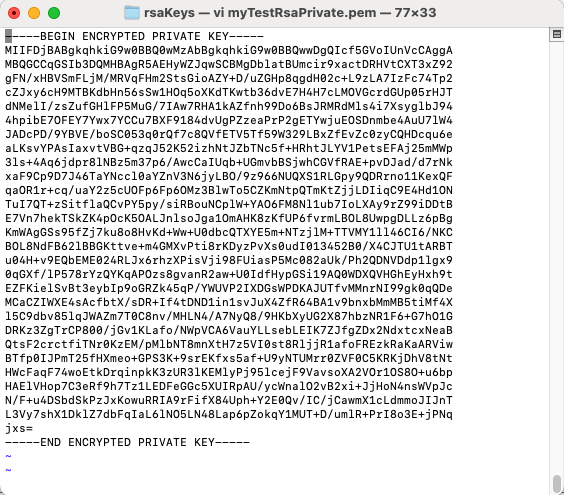
$path = "rsaKeys/myTestRsaPrivate.pem"
# Encrypt the PEM using 256-bit AES encryption.
$privKey.Pkcs8EncryptAlg = "aes256"
$success = $privKey.SavePkcs8EncryptedPemFile($password,$path)
if ($success -eq $false) {
$($privKey.LastErrorText)
exit
}
#  # We can also save the public key.
# There is no need to encrypt public keys.
$pubKey = New-Object Chilkat.PublicKey
$privKey.ToPublicKey($pubKey)
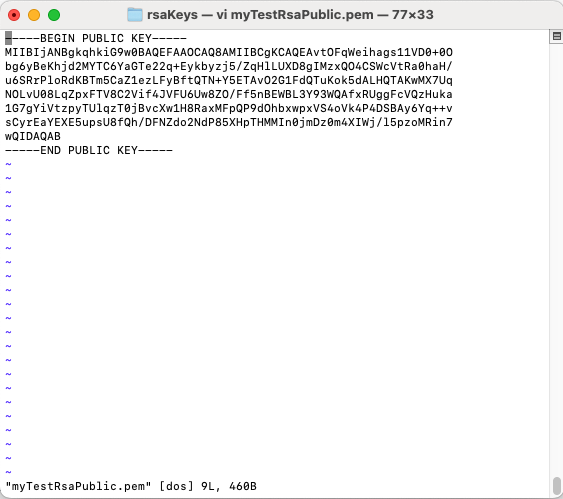
$path = "rsaKeys/myTestRsaPublic.pem"
# Choose PKCS1 or PKCS8
# We'll choose PKCS8.
$preferPkcs1 = $false
$success = $pubKey.SavePemFile($preferPkcs1,$path)
if ($success -eq $false) {
$($pubKey.LastErrorText)
exit
}
#
# We can also save the public key.
# There is no need to encrypt public keys.
$pubKey = New-Object Chilkat.PublicKey
$privKey.ToPublicKey($pubKey)
$path = "rsaKeys/myTestRsaPublic.pem"
# Choose PKCS1 or PKCS8
# We'll choose PKCS8.
$preferPkcs1 = $false
$success = $pubKey.SavePemFile($preferPkcs1,$path)
if ($success -eq $false) {
$($pubKey.LastErrorText)
exit
}
#  $("Success.")