PowerShell Requires Chilkat v11.7.0+
;S:;P:;; and offer to join the network. T is WPA (also used for WPA2 and WPA3), WEP, or nopass for an open network, and H:true can be added for a hidden network. In the name and the password, the characters backslash, semicolon, comma, colon and double quote must each be preceded by a backslash.
PowerShell
Create a Wi-Fi QR Code
See more QR Code Examples
Demonstrates a QR code that joins a phone to a Wi-Fi network when scanned. A QR code only holds text. Phones recognize text of the form WIFI:T:Chilkat PowerShell Downloads
Add-Type -Path "C:\chilkat\ChilkatDotNet47-x64\ChilkatDotNet47.dll"
$success = $false
# This example requires the Chilkat API to have been previously unlocked.
# See Global Unlock Sample for sample code.
$json = New-Object Chilkat.JsonObject
$json.UpdateString("payload.text","WIFI:T:WPA;S:Chilkat Guest;P:correct-horse-battery-staple;;")
# Level Q, so that the code still scans when it is printed small or gets worn.
$json.UpdateString("encoding.qr.errorCorrection","Q")
$json.UpdateInt("render.moduleSize",8)
# Say which network it is under the code.
$json.UpdateBool("render.text.enabled",$true)
$json.UpdateString("render.text.value","Wi-Fi: Chilkat Guest")
$json.UpdateInt("render.text.scale",2)
$json.UpdateString("output.path","qa_output/qr_wifi.png")
$json.UpdateBool("output.overwrite",$true)
$json.UpdateString("output.return","none")
$fmt = New-Object Chilkat.Formats
$jsonOut = New-Object Chilkat.JsonObject
$success = $fmt.QrCode("generate",$json,$jsonOut)
if ($success -eq $false) {
$($fmt.LastErrorText)
exit
}
$("file: " + $jsonOut.StringOf("outputs[0].path"))
$("QR version: " + $jsonOut.IntOf("symbols[0].selectedEncoding.version"))
$("image: " + $jsonOut.IntOf("outputs[0].width") + " x " + $jsonOut.IntOf("outputs[0].height") + " pixels")
# The image written to qa_output/qr_wifi.png:
# 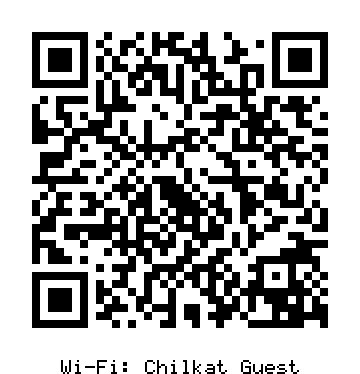 # Sample output:
# file: qa_output/qr_wifi.png
# QR version: 5
# image: 360 x 374 pixels