PowerShell Requires Chilkat v11.7.0+
PowerShell
Generate a QR Code PNG in Memory
See more QR Code Examples
Demonstrates getting a QR code image without writing a file. With no output options the result is a PNG returned as base64 in outputs[0].base64 of the response. The example decodes it into a BinData, which holds the bytes of the PNG to send in an HTTP response, store in a database, attach to an email, or save.Chilkat PowerShell Downloads
Add-Type -Path "C:\chilkat\ChilkatDotNet47-x64\ChilkatDotNet47.dll"
$success = $false
# This example requires the Chilkat API to have been previously unlocked.
# See Global Unlock Sample for sample code.
$json = New-Object Chilkat.JsonObject
$json.UpdateString("payload.text","https://www.chilkatsoft.com/")
$json.UpdateInt("render.moduleSize",6)
$fmt = New-Object Chilkat.Formats
$jsonOut = New-Object Chilkat.JsonObject
$success = $fmt.QrCode("generate",$json,$jsonOut)
if ($success -eq $false) {
$($fmt.LastErrorText)
exit
}
$("format: " + $jsonOut.StringOf("outputs[0].format"))
$("MIME type: " + $jsonOut.StringOf("outputs[0].mimeType"))
$("image: " + $jsonOut.IntOf("outputs[0].width") + " x " + $jsonOut.IntOf("outputs[0].height") + " pixels")
# outputs[0].base64 is the PNG file, base64 encoded.
$bdPng = New-Object Chilkat.BinData
$success = $bdPng.AppendEncoded($jsonOut.StringOf("outputs[0].base64"),"base64")
if ($success -eq $false) {
$($bdPng.LastErrorText)
exit
}
$("PNG bytes: " + $bdPng.NumBytes)
# The BinData holds the image. Here it is simply saved.
$success = $bdPng.WriteFile("qa_output/qr_in_memory.png")
if ($success -eq $false) {
$($bdPng.LastErrorText)
exit
}
# The PNG held in bdPng:
# 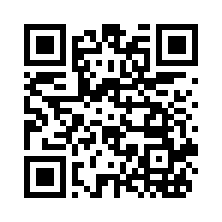 # Sample output:
# format: png
# MIME type: image/png
# image: 222 x 222 pixels
# PNG bytes: 877