PowerShell Requires Chilkat v11.7.0+
PowerShell
Generate a QR Code with the Barcode Method
See more QR Code Examples
Demonstrates the Barcode method, which is the general form of QrCode: the request names the symbology, and everything else is the same. QrCode is Barcode with the symbology already set to qr, and identical requests to the two methods give identical results. A program that will produce more than one kind of barcode can use Barcode for all of them.Chilkat PowerShell Downloads
Add-Type -Path "C:\chilkat\ChilkatDotNet47-x64\ChilkatDotNet47.dll"
$success = $false
# This example requires the Chilkat API to have been previously unlocked.
# See Global Unlock Sample for sample code.
$json = New-Object Chilkat.JsonObject
$json.UpdateString("symbology","qr")
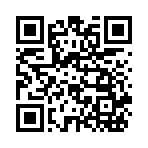
$json.UpdateString("payload.text","https://www.chilkatsoft.com/")
$json.UpdateString("output.path","qa_output/qr_from_barcode.png")
$json.UpdateBool("output.overwrite",$true)
$json.UpdateString("output.return","none")
$fmt = New-Object Chilkat.Formats
$jsonOut = New-Object Chilkat.JsonObject
$success = $fmt.Barcode("generate",$json,$jsonOut)
if ($success -eq $false) {
$($fmt.LastErrorText)
exit
}
$("symbology: " + $jsonOut.StringOf("symbols[0].symbology"))
$("QR version: " + $jsonOut.IntOf("symbols[0].selectedEncoding.version"))
$("image: " + $jsonOut.IntOf("outputs[0].width") + " x " + $jsonOut.IntOf("outputs[0].height") + " pixels")
# The image written to qa_output/qr_from_barcode.png:
#  # Barcode requires the symbology. QrCode does not.
$json2 = New-Object Chilkat.JsonObject
$json2.UpdateString("payload.text","https://www.chilkatsoft.com/")
$success = $fmt.Barcode("generate",$json2,$jsonOut)
if ($success -eq $false) {
$("without a symbology: " + $jsonOut.StringOf("errors[0].code") + " at " + $jsonOut.StringOf("errors[0].path"))
}
# Sample output:
# symbology: qr
# QR version: 3
# image: 148 x 148 pixels
# without a symbology: missingOption at /symbology