PowerShell Requires Chilkat v11.0.0+
PowerShell
ETrade OAuth1 Authorization (3-legged) Step 1
See more ETrade Examples
Demonstrates the first step in 3-legged OAuth1 authorization for the ETrade REST API. This example sends an HTTP request to the "request token URL" to get a request token that begins the OAuth1 process. (See https://apisb.etrade.com/docs/api/authorization/request_token.html )This example uses the sandbox request token URL. The live request token URL would be "https://api.etrade.com/oauth/request_token".
Chilkat PowerShell Downloads
Add-Type -Path "C:\chilkat\ChilkatDotNet47-x64\ChilkatDotNet47.dll"

$success = $false

#  This requires the Chilkat API to have been previously unlocked.
#  See Global Unlock Sample for sample code.

$consumerKey = "ETRADE_CONSUMER_KEY"
$consumerSecret = "ETRADE_CONSUMER_SECRET"

#  Note: This example uses the sandbox request token URL.
#  The live Get Request Token Request URL is:
#  https://api.etrade.com/oauth/request_token
#  This example will use the Sandbox Token Request URL:
$requestTokenUrl = "https://apisb.etrade.com/oauth/request_token"

$http = New-Object Chilkat.Http
$success = $true

$http.OAuth1 = $true
$http.OAuthConsumerKey = $consumerKey
$http.OAuthConsumerSecret = $consumerSecret
$http.OAuthCallback = "oob"

$resp = New-Object Chilkat.HttpResponse
$success = $http.HttpNoBody("GET",$requestTokenUrl,$resp)
if ($success -eq $false) {
    $($http.LastErrorText)
    exit
}

#  If successful, the resp.BodyStr contains something like this:
#  oauth_token=-Wa_KwAAAAAAxfEPAAABV8Qar4Q&oauth_token_secret=OfHY4tZBX2HK4f7yIw76WYdvnl99MVGB&oauth_callback_confirmed=true
$($resp.BodyStr)

$hashTab = New-Object Chilkat.Hashtable
$hashTab.AddQueryParams($resp.BodyStr)

$requestToken = $hashTab.LookupStr("oauth_token")
$requestTokenSecret = $hashTab.LookupStr("oauth_token_secret")
$http.OAuthTokenSecret = $requestTokenSecret

$("oauth_token = " + $requestToken)
$("oauth_token_secret = " + $requestTokenSecret)

#  Save this request token for the next step..
$json = New-Object Chilkat.JsonObject
$json.AppendString("oauth_token",$requestToken)
$json.AppendString("oauth_token_secret",$requestTokenSecret)

$fac = New-Object Chilkat.FileAccess
$fac.WriteEntireTextFile("qa_data/tokens/etrade_request_token.json",$json.Emit(),"utf-8",$false)

#  ---------------------------------------------------------------------------

#  The next step is to form a URL to send to the authorizeUrl
#  This is an HTTP GET that we load into a popup browser.
$authorizeUrl = "https://us.etrade.com/e/t/etws/authorize"

$sbUrlForBrowser = New-Object Chilkat.StringBuilder
$sbUrlForBrowser.Append($authorizeUrl)
$sbUrlForBrowser.Append("?key=")
$sbUrlForBrowser.Append($consumerKey)
$sbUrlForBrowser.Append("&token=")
$sbUrlForBrowser.Append($requestToken)
$url = $sbUrlForBrowser.GetAsString()

#  Launch the system's default browser navigated to the URL.
$oauth2 = New-Object Chilkat.OAuth2
$success = $oauth2.LaunchBrowser($url)
if ($success -eq $false) {
    $($oauth2.LastErrorText)
    exit
}

#  The ETrade account owner will login and grant access to the application.
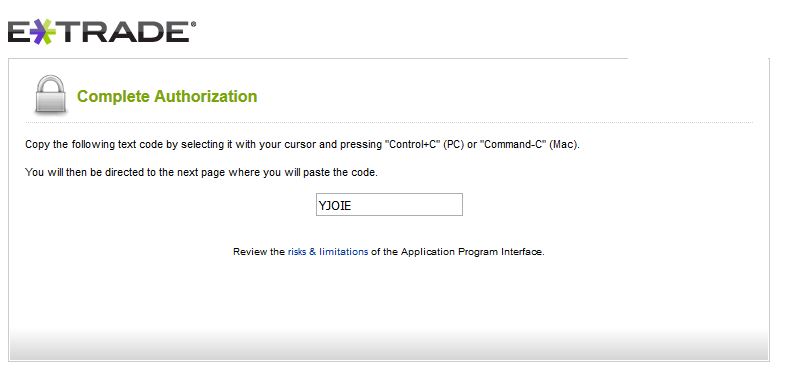
#  A short verifier code will be displayed (as shown below), and this must be copy-and-pasted
#  into the next step to Complete the 3-legged OAuth1 Authorization

#  Note: The browser will NOT automatically direct you to the next page.
#  You should copy the verifier code, close the browser, and then paste the verifier
#  code into your application.

#