Lazarus Pascal
Lazarus Pascal
Sign PDF in the Cloud using Azure Key Vault
See more Signing in the Cloud Examples
Demonstrates how to sign a PDF using Azure Key Vault. The signing of the hash happens in the Cloud on Azure Key Vault. Everything else involving the updating the PDF to add the signature happens locally within Chilkat.Note: This example requires Chilkat v9.5.0.96 or greater.
Chilkat Lazarus Pascal Downloads
program ChilkatDemo;
// Demonstrates using the Chilkat Pascal wrapper via the C bridge DLL.
// Builds as a console application under Lazarus (FPC) or Delphi.
{$IFDEF FPC}
{$MODE DELPHI}
{$ENDIF}
{$APPTYPE CONSOLE}
uses
{$IFDEF UNIX}
cthreads,
{$ENDIF}
SysUtils,
CkDllLoader,
Chilkat.Pdf,
Chilkat.Cert,
Chilkat.JsonObject;
// ---------------------------------------------------------------------------
procedure RunDemo;
var
success: Boolean;
pdf: TPdf;
json: TJsonObject;
cert: TCert;
jsonAzure: TJsonObject;
begin
success := False;
// This example requires the Chilkat API to have been previously unlocked.
// See Global Unlock Sample for sample code.
pdf := TPdf.Create;
// Load a PDF to be signed.
success := pdf.LoadFile('qa_data/pdf/helloWorld.pdf');
if (success = False) then
begin
WriteLn(pdf.LastErrorText);
Exit;
end;
// Options for signing are specified in JSON.
json := TJsonObject.Create;
// Optionally create an LTV-enabled signature
json.UpdateBool('ltvOcsp',True);
// Define the appearance of the signature.
json.UpdateInt('page',1);
json.UpdateString('appearance.y','top');
json.UpdateString('appearance.x','left');
json.UpdateString('appearance.fontScale','10.0');
json.UpdateString('appearance.text[0]','Digitally signed by: cert_cn');
json.UpdateString('appearance.text[1]','current_dt');
json.UpdateString('appearance.text[2]','This is an LTV-enabled signature.');
// Load the certificate used for signing. The certificate's private key is stored in
// the Azure Key Vault.
// However, we still need the certificate locally (without private key).
cert := TCert.Create;
success := cert.LoadFromFile('qa_data/certs/myCert.cer');
if (success = False) then
begin
WriteLn(cert.LastErrorText);
Exit;
end;
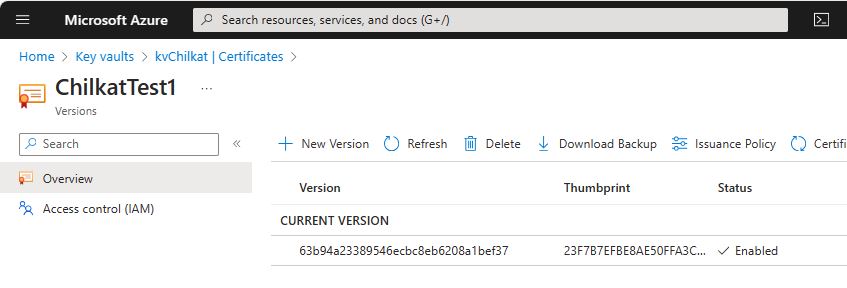
// Here's a screenshot of our certificate with private key on Azure Key Vault:
//  // To sign using the Azure Key Vault,
// add the following lines of code to specify your authentication credentials,
// and the name of the certificate w/ private key on the Azure server to be used.
jsonAzure := TJsonObject.Create;
// Set the "service" equal to "azure_keyvault" to tell Chilkat to use Azure Key Vault for signing.
jsonAzure.UpdateString('service','azure_keyvault');
jsonAzure.UpdateString('client_id','APP_ID');
jsonAzure.UpdateString('client_secret','APP_PASSWORD');
jsonAzure.UpdateString('tenant_id','TENANT_ID');
// In the above screenshot, our vault name is "kvchilkat". You will use your vault name.
jsonAzure.UpdateString('vault_name','VAULT_NAME');
// In the above screenshot, our cert name is "ChilkatTest1". You will use your cert name.
jsonAzure.UpdateString('cert_name','CERT_NAME');
// In the above screenshot, our cert version is "63b94a23389546ecbc8eb6208a1bef37". You will use your cert version.
jsonAzure.UpdateString('cert_version','CERT_VERSION');
success := cert.SetCloudSigner(jsonAzure);
// Tell the pdf object to use the certificate for signing (and for Azure Key Vault to do the actual signing of the hash).
success := pdf.SetSigningCert(cert);
if (success = False) then
begin
WriteLn(pdf.LastErrorText);
Exit;
end;
// Chilkat will build the signed PDF locally, but will (internally) use Azure Key Vault
// to do the RSA (or EC) sign hash operation.
success := pdf.SignPdf(json,'qa_output/hello_ltv_signed.pdf');
if (success = False) then
begin
WriteLn(pdf.LastErrorText);
Exit;
end;
WriteLn('PDF Cloud Signing using Azure Key Vault Successful.');
pdf.Free;
json.Free;
cert.Free;
jsonAzure.Free;
end;
// ---------------------------------------------------------------------------
begin
try
RunDemo;
except
on E: Exception do
WriteLn('Unhandled exception: ', E.ClassName, ': ', E.Message);
end;
WriteLn;
{$IFDEF MSWINDOWS}
WriteLn('Press Enter to exit...');
ReadLn;
{$ENDIF}
end.
// To sign using the Azure Key Vault,
// add the following lines of code to specify your authentication credentials,
// and the name of the certificate w/ private key on the Azure server to be used.
jsonAzure := TJsonObject.Create;
// Set the "service" equal to "azure_keyvault" to tell Chilkat to use Azure Key Vault for signing.
jsonAzure.UpdateString('service','azure_keyvault');
jsonAzure.UpdateString('client_id','APP_ID');
jsonAzure.UpdateString('client_secret','APP_PASSWORD');
jsonAzure.UpdateString('tenant_id','TENANT_ID');
// In the above screenshot, our vault name is "kvchilkat". You will use your vault name.
jsonAzure.UpdateString('vault_name','VAULT_NAME');
// In the above screenshot, our cert name is "ChilkatTest1". You will use your cert name.
jsonAzure.UpdateString('cert_name','CERT_NAME');
// In the above screenshot, our cert version is "63b94a23389546ecbc8eb6208a1bef37". You will use your cert version.
jsonAzure.UpdateString('cert_version','CERT_VERSION');
success := cert.SetCloudSigner(jsonAzure);
// Tell the pdf object to use the certificate for signing (and for Azure Key Vault to do the actual signing of the hash).
success := pdf.SetSigningCert(cert);
if (success = False) then
begin
WriteLn(pdf.LastErrorText);
Exit;
end;
// Chilkat will build the signed PDF locally, but will (internally) use Azure Key Vault
// to do the RSA (or EC) sign hash operation.
success := pdf.SignPdf(json,'qa_output/hello_ltv_signed.pdf');
if (success = False) then
begin
WriteLn(pdf.LastErrorText);
Exit;
end;
WriteLn('PDF Cloud Signing using Azure Key Vault Successful.');
pdf.Free;
json.Free;
cert.Free;
jsonAzure.Free;
end;
// ---------------------------------------------------------------------------
begin
try
RunDemo;
except
on E: Exception do
WriteLn('Unhandled exception: ', E.ClassName, ': ', E.Message);
end;
WriteLn;
{$IFDEF MSWINDOWS}
WriteLn('Press Enter to exit...');
ReadLn;
{$ENDIF}
end.