JavaScript
JavaScript
Send HTML Email with Image to iPhone
Demonstrates how to compose an HTML email with an embedded image that will display correctly on an iPhone. This example produces an email that looks like this on the iPhone: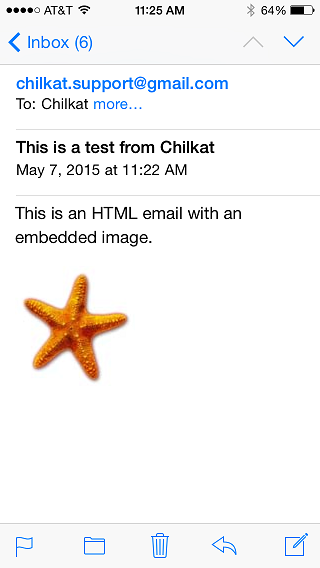
Note
This example is intended for running within a Chilkat.Js embedded JavaScript engine. All Chilkat JavaScript examples require Chilkat
v11.4.0 or greater.
var success = false;

// This example requires the Chilkat API to have been previously unlocked.
// See Global Unlock Sample for sample code.

// The mailman object is used for sending and receiving email.
var mailman = new CkMailMan();

// Use your SMTP server hostname.  This example uses office365, but it could be any SMTP server..
mailman.SmtpHost = "outlook.office365.com";
mailman.SmtpPort = 587;
mailman.StartTLS = true;

// Set the SMTP login/password
mailman.SmtpUsername = "OFFICE365-SMTP-LOGIN";
mailman.SmtpPassword = "OFFICE365-SMTP-PASSWORD";

// Create a new email object
var email = new CkEmail();
email.Subject = "Testing for Chilkat SMTP API...";
email.Body = "Testing for Chilkat SMTP API...";
email.From = "Chilkat Support <my-office365-user@mydomain.com>";
email.AddTo("Chilkat Support","support@chilkatsoft.com");

// For whatever reason, the iPhone's email program requires
// images in HTML to be referenced by Content-ID.  Therefore,
// we must add the image like this:
var contentIdStarfish = email.AddRelatedFile("qa_data/jpg/starfish.jpg");
if (email.LastMethodSuccess !== true) {
    console.log(email.LastErrorText);
    return;
}

// The src attribute for the image tag is set to the contentIdStarfish:
var sbHtml = new CkStringBuilder();
sbHtml.Append("<html><body><p>This is an HTML email with an embedded image.</p>");
sbHtml.Append("<p><img src=\"cid:CONTENT_ID_STARFISH\" /></p></body></html>");
var numReplacements = sbHtml.Replace("CONTENT_ID_STARFISH",contentIdStarfish);

email.SetHtmlBody(sbHtml.GetAsString());

success = mailman.SendEmail(email);
if (success !== true) {
    console.log(mailman.LastErrorText);
}
else {
    console.log("Mail Sent!");
}