C# Requires Chilkat v11.4.0+
C#
AI Modify Existing Image with Text Prompt
See more AI Examples
Uses an AI text prompt and uploaded image data to modify an existing image and receive the modified output.Chilkat C# Downloads
bool success = false;
// This example assumes the Chilkat API to have been previously unlocked.
// See Global Unlock Sample for sample code.
// Load the data from an existing image.
Chilkat.BinData bdImageData = new Chilkat.BinData();
success = bdImageData.LoadFile("qa_data/jpg/kid_blue_coat.jpg");
if (success == false) {
Debug.WriteLine(bdImageData.LastErrorText);
return;
}
Chilkat.Ai ai = new Chilkat.Ai();
ai.Provider = "openai";
// Use your provider's API key.
ai.ApiKey = "MY_API_KEY";
// Choose a model.
ai.Model = "gpt-5.6-terra";
Chilkat.JsonObject askParams = new Chilkat.JsonObject();
askParams.UpdateString("image.output_format","jpeg");
ai.SetAskParams(askParams);
ai.InputAddImageData(bdImageData,"");
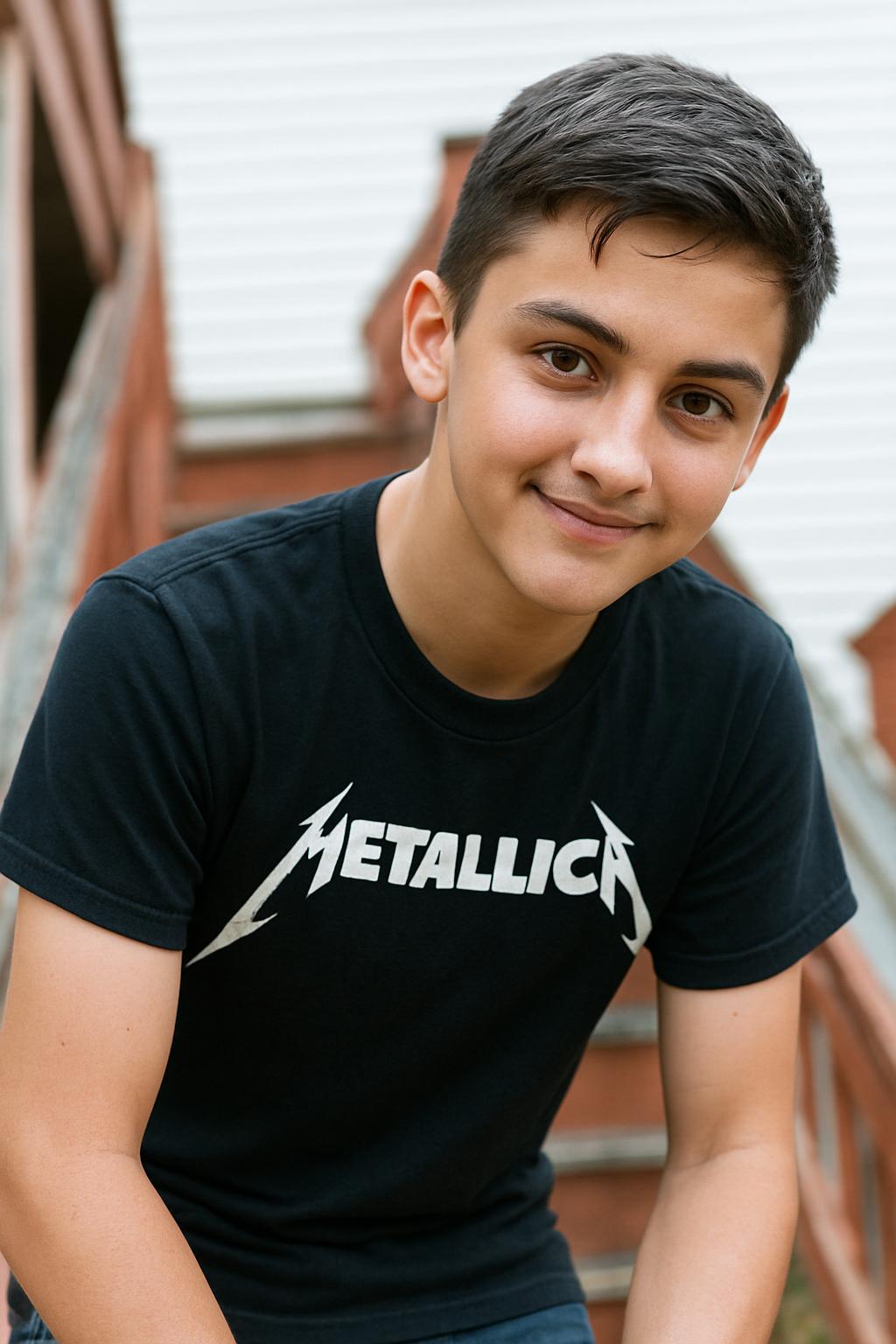
ai.InputAddText("Modify the image by replacing the blue coat with a Metallica T-shirt.");
// Give the AI some time (2 minutes).
ai.IdleTimeoutMs = 120000;
// Ask the AI for image output.
success = ai.Ask("image");
if (success == false) {
Debug.WriteLine(ai.LastErrorText);
return;
}
// Get the image response data.;
success = ai.GetOutputBd(bdImageData);
if (success == false) {
Debug.WriteLine(ai.LastErrorText);
return;
}
bdImageData.WriteFile("c:/aaworkarea/out.jpg");
Debug.WriteLine("Success.");
// -------------------------------
// Sample Input:
// -------------------------------
// 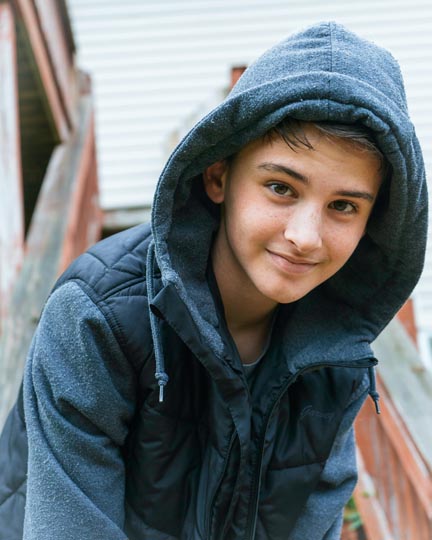 // -------------------------------
// Sample Output:
// -------------------------------
//
// -------------------------------
// Sample Output:
// -------------------------------
//