AutoIt
AutoIt
PDF Signature Appearance Text Substitution Keywords
See more PDF Signatures Examples
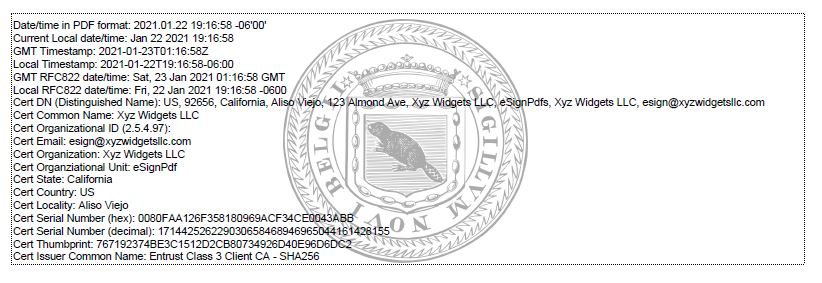
This example demonstrates the text substitution keywords that can be used in the PDF signature's appearance text.Note: This example requires Chilkat v9.5.0.85 or greater.
Chilkat AutoIt Downloads
Local $bSuccess = False

;  This example requires the Chilkat API to have been previously unlocked.
;  See Global Unlock Sample for sample code.

$oPdf = ObjCreate("Chilkat.Pdf")

;  Load a PDF to be signed.
$bSuccess = $oPdf.LoadFile("qa_data/pdf/empty.pdf")
If ($bSuccess = False) Then
    ConsoleWrite($oPdf.LastErrorText & @CRLF)
    Exit
EndIf

;  Options for signing are specified in JSON.
$oJson = ObjCreate("Chilkat.JsonObject")

;  In most cases, the signingCertificateV2 and signingTime attributes are required.
$oJson.UpdateInt("signingCertificateV2",1)
$oJson.UpdateInt("signingTime",1)

;  Put the signature on page 1, top left
$oJson.UpdateInt("page",1)
$oJson.UpdateString("appearance.y","top")
$oJson.UpdateString("appearance.x","left")

;  Use a font scale of 7.0
$oJson.UpdateString("appearance.fontScale","7.0")

;  The appearance of the PDF signature can contain any number of text lines.
;  Chilkat has defined a number of special keywords that can be used in any text line.
;  Each keyword is replaced with the actual value.
;  For example, "cert_cn" is replaced with the certificate subject's common name (CN).

;  Here we are creating a signature with many lines of text, to demonstrate each
;  keyword.
$oJson.UpdateString("appearance.text[0]","Date/time in PDF format: current_dt")
$oJson.UpdateString("appearance.text[1]","Current Local date/time: current_datetime")
$oJson.UpdateString("appearance.text[2]","GMT Timestamp: current_timestamp_gmt")
$oJson.UpdateString("appearance.text[3]","Local Timestamp: current_timestamp_local")
$oJson.UpdateString("appearance.text[4]","GMT RFC822 date/time: current_rfc822_dt_gmt")
$oJson.UpdateString("appearance.text[5]","Local RFC822 date/time: current_rfc822_dt_local")
$oJson.UpdateString("appearance.text[6]","Cert DN (Distinguished Name): cert_dn")
$oJson.UpdateString("appearance.text[7]","Cert Common Name: cert_cn")
$oJson.UpdateString("appearance.text[8]","Cert Organizational ID (2.5.4.97): cert_org_id")
$oJson.UpdateString("appearance.text[9]","Cert Email: cert_email")
$oJson.UpdateString("appearance.text[10]","Cert Organization: cert_organization")
$oJson.UpdateString("appearance.text[11]","Cert Organziational Unit: cert_ou")
$oJson.UpdateString("appearance.text[12]","Cert State: cert_state")
$oJson.UpdateString("appearance.text[13]","Cert Country: cert_country")
$oJson.UpdateString("appearance.text[14]","Cert Locality: cert_locality")
$oJson.UpdateString("appearance.text[15]","Cert Serial Number (hex): cert_serial_hex")
$oJson.UpdateString("appearance.text[16]","Cert Serial Number (decimal): cert_serial_dec")
$oJson.UpdateString("appearance.text[17]","Cert Thumbprint: cert_thumbprint")
$oJson.UpdateString("appearance.text[18]","Cert Issuer Common Name: cert_issuer_cn")

$oJpgData = ObjCreate("Chilkat.BinData")
$bSuccess = $oJpgData.LoadFile("qa_data/jpg/seal1.jpg")
If ($bSuccess = False) Then
    ConsoleWrite("Failed to load the JPG image." & @CRLF)
    Exit
EndIf

$bSuccess = $oPdf.SetSignatureJpeg($oJpgData)
If ($bSuccess = False) Then
    ConsoleWrite($oPdf.LastErrorText & @CRLF)
    Exit
EndIf

;  Specify that we want to display the JPG image in the center with 33% opacity.
$oJson.UpdateString("appearance.image","custom-jpg")
$oJson.UpdateString("appearance.imagePlacement","center")
$oJson.UpdateString("appearance.imageOpacity","33")

;  Load the signing certificate. (Use your own certificate.)
$oCert = ObjCreate("Chilkat.Cert")
$bSuccess = $oCert.LoadPfxFile("qa_data/pfx/myPdfSigningCert.pfx","pfx_password")
If ($bSuccess = False) Then
    ConsoleWrite($oCert.LastErrorText & @CRLF)
    Exit
EndIf

;  Tell the pdf object to use the certificate for signing.
$bSuccess = $oPdf.SetSigningCert($oCert)
If ($bSuccess = False) Then
    ConsoleWrite($oPdf.LastErrorText & @CRLF)
    Exit
EndIf

$bSuccess = $oPdf.SignPdf($oJson,"qa_output/hello_signed.pdf")
If ($bSuccess = False) Then
    ConsoleWrite($oPdf.LastErrorText & @CRLF)
    Exit
EndIf

ConsoleWrite("The PDF has been successfully cryptographically signed." & @CRLF)

;  The appearance of the signature appears in Adobe Acrobat as shown here:

;