Classic ASP Requires Chilkat v11.7.0+
Classic ASP
QR Code Numeric, Alphanumeric and Byte Modes
See more QR Code Examples
Demonstrates the QR encoding modes. Digits alone are stored in numeric mode, and text made only of digits, upper-case letters, space and $ % * + - . / : in alphanumeric mode. Both pack more characters into a symbol than byte mode, which is used for everything else. QrCode chooses the most compact mode the text allows, and the response reports it. A product code written in upper case therefore gives a smaller symbol than the same code in lower case.Chilkat Classic ASP Downloads
<html>
<head>
<meta http-equiv="Content-Type" content="text/html; charset=utf-8">
</head>
<body>
<%
success = 0
' This example requires the Chilkat API to have been previously unlocked.
' See Global Unlock Sample for sample code.
set fmt = Server.CreateObject("Chilkat.Formats")
set json = Server.CreateObject("Chilkat.JsonObject")
set jsonOut = Server.CreateObject("Chilkat.JsonObject")
' Digits only.
success = json.UpdateString("payload.text","00123456789012345678")
success = fmt.QrCode("generate",json,jsonOut)
If (success = 0) Then
Response.Write "<pre>" & Server.HTMLEncode( fmt.LastErrorText) & "</pre>"
Response.End
End If
Response.Write "<pre>" & Server.HTMLEncode( "digits: mode " & jsonOut.StringOf("symbols[0].selectedEncoding.mode") & ", version " & jsonOut.IntOf("symbols[0].selectedEncoding.version")) & "</pre>"
' Upper-case letters, digits, space and - are all in the alphanumeric set.
success = json.UpdateString("payload.text","ORDER-12345 LOT A7 SHELF 12-C")
success = fmt.QrCode("generate",json,jsonOut)
If (success = 0) Then
Response.Write "<pre>" & Server.HTMLEncode( fmt.LastErrorText) & "</pre>"
Response.End
End If
Response.Write "<pre>" & Server.HTMLEncode( "upper case: mode " & jsonOut.StringOf("symbols[0].selectedEncoding.mode") & ", version " & jsonOut.IntOf("symbols[0].selectedEncoding.version")) & "</pre>"
' Lower-case letters are not, so the same text in lower case needs byte mode.
success = json.UpdateString("payload.text","order-12345 lot a7 shelf 12-c")
success = fmt.QrCode("generate",json,jsonOut)
If (success = 0) Then
Response.Write "<pre>" & Server.HTMLEncode( fmt.LastErrorText) & "</pre>"
Response.End
End If
Response.Write "<pre>" & Server.HTMLEncode( "lower case: mode " & jsonOut.StringOf("symbols[0].selectedEncoding.mode") & ", version " & jsonOut.IntOf("symbols[0].selectedEncoding.version")) & "</pre>"
' The mode can be named. Byte mode can hold any text. Naming a mode the text cannot use
' (numeric for text with letters, for example) fails with conflictingOptions.
success = json.UpdateString("payload.text","00123456789012345678")
success = json.UpdateString("encoding.qr.mode","byte")
success = fmt.QrCode("generate",json,jsonOut)
If (success = 0) Then
Response.Write "<pre>" & Server.HTMLEncode( fmt.LastErrorText) & "</pre>"
Response.End
End If
Response.Write "<pre>" & Server.HTMLEncode( "digits as bytes: mode " & jsonOut.StringOf("symbols[0].selectedEncoding.mode") & ", version " & jsonOut.IntOf("symbols[0].selectedEncoding.version")) & "</pre>"
' The four symbols, in the order they were made:
' 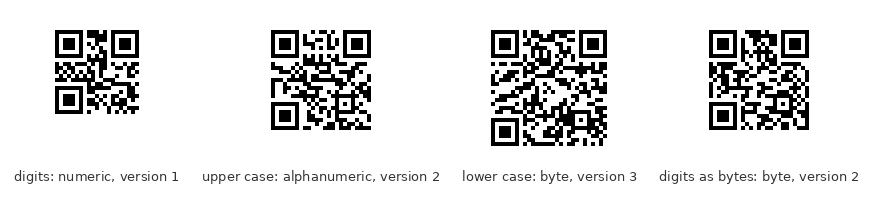 ' Sample output:
' digits: mode numeric, version 1
' upper case: mode alphanumeric, version 2
' lower case: mode byte, version 3
' digits as bytes: mode byte, version 2
%>
</body>
</html>